Sometime during development a web part might encounter unhandled exceptions and that will cause your page to have the red colored error text to appear.
In some cases you want to remove this problimatic web part, to do this simply append "?contents=1" to the url. The web part maintenance will appear and you can remove the web part with error.
Some other url tricks to manage sharepoint page view:
?PageView=Shared&ToolPaneView=2 --> Change everyone's view of a particular page.
?PageView=Personal&ToolPaneView=2 --> change private view of a particular page.
cheers :).
Tuesday, January 26, 2010

Monday, January 4, 2010
Thread Creation with ManualResetEvent
Use ManualResetEvent to synchronize the multiple threads that are running. In this example the main thread will wait for all the threads to complete before exiting the caller method by using ManualResetEvent.WaitAll.
In the code below, I created a pattern with thread creation. Remeber that creating a thread is quite expensive, so remember tha you shoul create a thread only when you know how many process you will be running simutaneously and it may take time to process meaning it may run for 10 seconds or more.
If you have more than 20 threads to be created then try to execute them in batch specially if these threads will take time to process. Let 20 threads to finish first before creating another new batch of threads. This pattern was demostrated in the code below, with some code comments.
But if you have multiple processes that may take only for a few seconds then maybe consider using ThreadPool, which I will be discussing in my next blog.
Code:

Output:

Note:
You will encounter an error when using ManualResetEvent.WaitAll with a single threaded method meaning when a method has a declared [STAThread]
See a good pattern on how to use ManualResetEvent with a Single Threaded Method.
Threading with anonymous method
One of the enhancements to C# in version 2.0 is anonymous methods. These allow you to specify blocks of code as methods within other methods, and use those methods as delegates. You can access variables (including local variables and parameters of the "outside" method) within the anonymous method.
So with this enhancement it is now very easy to pass delegated method in a created thread.
Before you need to pass an object and cast it inside the delegated function.
for example, if you need to pass multiple strings to a delegated function, then you need to use delimeter and then parse it in delegated function, as shown in the example below.

Now with the enhancement with .Net 2.0, it easier.
Using with ThreadPool
ThreadPool.QueueUserWorkItem(delegate { d.Worker2("my string parameter"); });
or with lambda exporession
ThreadPool.QueueUserWorkItem(e => d.Worker2("my string parameter"));
Using with ParameterizedThreadStart
Thread t = new Thread(new ParameterizedThreadStart(delegate{ d.Worker("my string parameter");}));
Code Example:

Wednesday, December 30, 2009
Sharepoint 2010 new things
You can find all this new intersting things of Sharepoint 2010 to offer in Nuts and Bolts of Sharepoing Blog
1) Scalability/list throttling.
2) Enterprise Content Types.
3) User Experience.
4) Content Organizer or Drop-Off Library.
5) Document Sets.
6) Tagging.
7) Taxonomy
1) Scalability/list throttling.
2) Enterprise Content Types.
3) User Experience.
4) Content Organizer or Drop-Off Library.
5) Document Sets.
6) Tagging.
7) Taxonomy
Tuesday, December 29, 2009
Xslt with C# scripting
First I would like to discuss on how to insert c# scripting in xslt, which is sometimes very helpful specially when parsing involve, which is quite complicated in xslt code. The 2nd part of is how to render xslt with c# code in c#.
Part 1
1) On the style sheet element add the msxls namespace and c# code namespace, as show below.
<xsl:stylesheet version="1.0" xsl="http://www.w3.org/1999/XSL/Transform" row="http://tempuri.org/NewsLetterData.xsd" msxsl="urn:schemas-microsoft-com:xslt" prefixes="msxsl" code="Code"></xsl:stylesheet>
2) After the xslt element proceed with your c# code script as shown below. Add some assembly and assembly namespace which your code used.
<?xml:namespace prefix = msxsl /><msxsl:script language="C#" prefix="Code">
<msxsl:assembly name="System.Data"></msxsl:assembly>
<msxsl:using namespace="System.Text"></msxsl:using>
<msxsl:using namespace="System.IO"></msxsl:using>
</msxsl:script>
3) When c# code is ready you can easily call your code inside your xslt by specifying <code namespace declared>:<codename>.
<xsl:variable name="output" select="Code:YourCodeHere($parameter)" />
Rendering Xslt with c# code
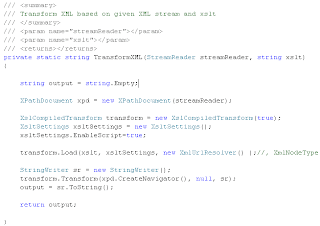
Part 1
1) On the style sheet element add the msxls namespace and c# code namespace, as show below.
<xsl:stylesheet version="1.0" xsl="http://www.w3.org/1999/XSL/Transform" row="http://tempuri.org/NewsLetterData.xsd" msxsl="urn:schemas-microsoft-com:xslt" prefixes="msxsl" code="Code"></xsl:stylesheet>
2) After the xslt element proceed with your c# code script as shown below. Add some assembly and assembly namespace which your code used.
<?xml:namespace prefix = msxsl /><msxsl:script language="C#" prefix="Code">
<msxsl:assembly name="System.Data"></msxsl:assembly>
<msxsl:using namespace="System.Text"></msxsl:using>
<msxsl:using namespace="System.IO"></msxsl:using>
</msxsl:script>
3) When c# code is ready you can easily call your code inside your xslt by specifying <code namespace declared>:<codename>.
<xsl:variable name="output" select="Code:YourCodeHere($parameter)" />
Rendering Xslt with c# code

Enabling XSLT intellisense
To enable some additional Xslt intellisense in Visual Studio run Registry Editor and navigate to My Computer\HKEY_CURRENT_USER\Software\Microsoft\VisualStudio\9.0\XmlEditor and locate registry key XsltIntellisense and set its value to "True".
Positive, Negative or Zero number string formatting in c#
The code below shows how to format an integer values with positive, negative or zero values.
int positiveNumber = 1000;
Console.WriteLine(string.Format("{0:$#,###.00;($#,###.00);$0.00}",positiveNumber));
int negativeNumber = -1000;
Console.WriteLine(string.Format("{0:$#,###.00;($#,###.00);$0.00}", negativeNumber));
int zeroNumber = 0;
Console.WriteLine(string.Format("{0:$#,###.00;($#,###.00);$0.00}", zeroNumber));
outputs are:
$1,000.00
($1,000.00)
$0.00
Subscribe to:
Posts (Atom)